Monday, November 07, 2016

Thursday, November 03, 2016
iPhone Data Recovery and Backup iPhone, iPad and iPod
Data lost or deleted accidentally on iOS device
(iPhone iPad and iPod) is a big headache. What is worse, you find you have not
backed up your important contacts, messages, photos, call logs and other data
on your iPhone, iPad or iPod. But calm down, Aiseesoft FoneLab, an iPhone data recovery tool will do you a
favor. It is the easy-to-use software to recover lost or deleted data and back
up information on your iPhone iPad and iPod.

Wednesday, November 02, 2016
How to fix iPhone stuck in recovery mode without restoration
Is
your new iPhone 7 stuck in recovery mode? Or it is your iPhone 6 that is badly
stuck in the recovery mode and you have tried everything but nothing worked.
An iPhone stuck in recovery mode is the last
thing that you will wish to experience. It is one of those moments where you do
not have much to do. Every single move is risky since you might end up losing
your data.Of course, the easiest way it to restore your
iPhone and it will be fixed (in most of the cases) but you will lose all the
data. Unfortunately, this is exactly what most of the tools do. They will
simply restore your iPhone and that’s it. There are only a few tools that do it
the right way without restoring your iPhone (more on such tools coming soon).
List Of Secret USSD Codes To Unlock Hidden iPhone Settings

A list of secret Apple iPhone codes that can unlock a raft of hidden features and settings has been revealed, allowing users to do anything from enhancing their call quality to checking their mobile balance.
Tuesday, November 01, 2016
DiskDigger Pro file recovery v1.0_pro_2016.10.30 Apk for android
DiskDigger Pro file recovery is a Tools Game for android
download last version of DiskDigger Pro file recovery Apk for android from direct link
download last version of DiskDigger Pro file recovery Apk for android from direct link
DiskDigger Pro (for rooted devices!) can undelete and recover lost photos, documents, videos, music, and more from your memory card or internal memory (see supported file types below). Whether you accidentally deleted a file, or even reformatted your memory card, DiskDigger’s powerful data recovery features can find your lost files and let you restore them.
Configure your Raspberry Pi 3 (bug fixes)
Configure your Raspberry Pi 3 (bug fixes)
So this is not only a simple guide, unfortunately the Raspberry Pi 3 Operative System (Raspbian Jessie 4.4) has a ton of bugs and you may not be able to use some of the most basic features out of the box, here are the fixes for the most annoying bugs I've found. Many of these bug fixes (or workarounds) can be hard to find so I decided to make a compilation here.
Monday, October 31, 2016
ANDROID ACCESSIBILITY SETTINGS: 5 HIDDEN OPTIONS EVERYONE SHOULD BE USING
The Android system, whether you own an LG G3, Galaxy S4 or Nexus 5, has a
number of accessibility options built in for those hard of hearing, suffering
from a vision impairment or any other number of other conditions that might
make the standard operation of your Android difficult. These are great features
to be sure, but you don't need to be as blind as me to take advantage of them.
Here's five accessibility settings you should be using.

Accessibility options are a treasure trove of
cool features you probably didn't even know existed.
Friday, October 28, 2016

Wednesday, October 26, 2016
How to Enable Wi-Fi Calling on an Android Phone

Wi-Fi calling allows your smartphone to place and receive phone
calls, as well as send and receive SMS messages over Wi-Fi instead of the
cellular network. Your phone will seamlessly hand off to the cellular network
when you move out of Wi-FI range.
Android phones have supported this for longer than the iPhone has, but often
just with customized Android devices purchased from the cellular carrier
itself. There are also other Wi-Fi calling solutions you can use, including
Google Hangouts, Google Voice, and Skype.
This feature is now integrated into the latest versions of
Android in a more standard way. One day, you’ll hopefully be able to get
any Android phone and enable Wi-Fi calling on any cellular carrier’s network if
that carrier supports it, just as you can with iPhones.
Thursday, October 20, 2016
How to Hide Files Inside An Image Without Any Software
How to Hide Files Inside An Image Without
Any Software

How to
Hide Files Inside An Image Without Any Software
Today we are going to share an extraordinary trick on how to hide
your precious files in Image/JPG format. This is a tricky post so you have to
follow each and every step carefully to make this trick working.
I‘m
continuing to administer another exceptional Windows Trick: How to
Hide Files In JPG. If you crave to send any file personally to your
friend and don’t want others to glimpse in, just hide the file inside an image
and send it to them. Ok, But how are we gonna do such? This Technique to
Hide Files In JPG or an image is acknowledged asSteganography,
so let’s see how it is done step by step.
Tuesday, October 11, 2016
10 Tips and Tricks for Google Maps On Android
10 Tips and Tricks for Google Maps On
Android

Today we are here with some amazing tips and tricks for Android
Google Maps app that you might not have tried till now, these tricks will
help you in navigation and automating your routing tasks with great ease and
also some of the additional features that you don’t even know these app can do.
Thursday, October 06, 2016
Steampunk Defense v1.9.1 Apk + Mod for android

Steampunk Defense is
a Strategy Game for android
download last version of Steampunk Defense Apk + Mod for android from from the link below:
download last version of Steampunk Defense Apk + Mod for android from from the link below:
Get ready for steampunk tower defense battles! Defend
your lands against evil invaders!
Your team will consist of modern snipers, gunners,
rockets, ice towers and other great things.
A deep conflict has been brewing between you and the evil invaders. Fight to protect your freedom and liberty.
Fight on tropical islands, in mountains, and in deserts.
A deep conflict has been brewing between you and the evil invaders. Fight to protect your freedom and liberty.
Fight on tropical islands, in mountains, and in deserts.
Command your steampunk iron troops and find the best
tower defense strategy to become number one in this awesome TD game with epic
battles in jungles.
★★★ Steampunk Defense ★★★
★★★ Steampunk Defense ★★★
Awesome tower defense with great units and characters
★ Epic battles
★ Lots of soldiers, tanks, and guns.
★ 3 islands with unique levels that allow you to fully defend and have the full battle experience
★ 6 unique guns
★ Unique and fired-up enemies
★ 24 defense levels in tropics, deserts and jungles
★ Enemies from infantry to aviation
★ Upgrade your units in the labaratory
★ Multiplayer mode
★ Lots of soldiers, tanks, and guns.
★ 3 islands with unique levels that allow you to fully defend and have the full battle experience
★ 6 unique guns
★ Unique and fired-up enemies
★ 24 defense levels in tropics, deserts and jungles
★ Enemies from infantry to aviation
★ Upgrade your units in the labaratory
★ Multiplayer mode
Tower defense has never been so extreme and beautiful.
·


·
·
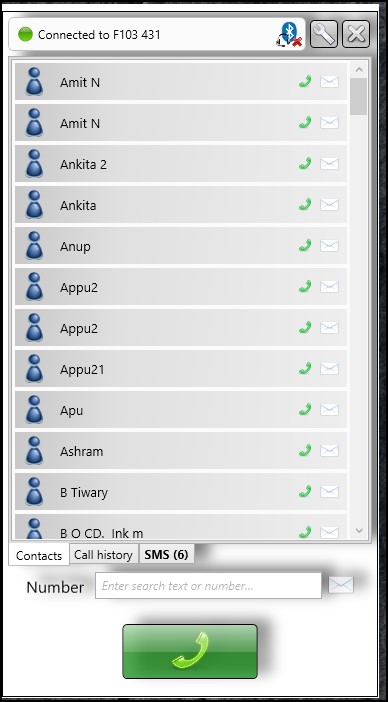
How To Receive And Make Android Call On Windows PC
How To Receive And Make Android Call On Windows PCAs we all know, sometimes it seems to be difficult to put up your android and then make calls or receive calls. Therefore, we are going to discuss a method that will help you to make or receive calls directly from your windows PC. Go through the post to know about it.While working on PC, sometimes it seems to be difficult to put up your Android and then make calls or receive calls as we always try to find out the convenient way to do everything. That’s why we are here discussing a cool way by which you can receive and make all your android call directly from your Windows PC. Yes, it’s possible, and you will be making your Microsoft Windows PC as remote dialer for managing incoming and outgoing calls and for writing and receiving SMS messages. And with that, you can easily manage all your calls directly from your Windows PC, and this will save lots of time. So have a look on complete guide discussed below to proceed.How to Receive Android Call On Windows PCThis integration allows simple dialing and SMS creation direct from your Windows PC and will get all sync your call logs with your PC. And this will make your work easier as you will be attending all calls by working on your computer. So follow up the complete steps below to proceed.Call Center features (app running on your PC)– Shows phone contacts
– Shows call log
– Allows dialing contacts, call log entries and entered numbers
– Writing and reading SMS messages
– Contact search
– Answer incoming calls
– Popup for incoming calls and SMS messages
– Manage audio settings
– Hotkey for dialing numbers from the clipboard
– Hotkey for accepting incoming calls
– Handle “tel” and “call to” ULRs
– Auto starts at windows loginSteps To Setup CallCentre To Make Android Calls On PCStep 1. First of all, on your Android device you need to download and install the cool app that is Remote Phone Call the trial all that is valid for 15 days, and if you like this, then you can also use its paid version for your android Receive And Make Android Call On Windows PCStep 2. Now on your PC you need to download and install the tool that is CallCentre the app that will allow you to receive and make your android call on your PC.Step 3. Now launch the app in your device and respectively on your Windows PC.Step 4. Now in your mobile app, you will see the device IP and password to control it remotely, just note it down. In PC app clicks on add wifi device and then enter that IP address there.Step 5. Now you need to enter the password of the network that you will get from the popup that appears on your android.Step 6. Now fill that password in Windows tool and then your device will get connected to your PC.


That’s it! You are done, now you can make and receive all your android call directly from your Windows PC.


So above is all about How To Receive & Make Android Call On Windows PC. With this, you can easily get all your android call directly to your Windows PC. So try this method today. Hope you like my work, keep on sharing
Saturday, October 01, 2016
ANDROID MARSHMALLOW TIPS AND TRICKS: 15 YOU SHOULD TRY
1. Uninstall apps from your home screen or app drawer
In Android Marshmallow you can now uninstall an app on your home screen or in your app drawer simply by long-pressing it. At the top of the screen you'll now see options for Remove or Uninstall on the home screen, or App Info and Uninstall in the app drawer. Simply drag the app icon to the one you want.
Subscribe to:
Comments (Atom)