How To
Receive And Make Android Call On Windows PC
As we all know, sometimes it seems to be difficult to put up
your android and then make calls or receive calls. Therefore, we are going to
discuss a method that will help you to make or receive calls directly from
your windows PC. Go through the post to know about it.
While
working on PC, sometimes it seems to be difficult to put up your Android and
then make calls or receive calls as we always try to find out the convenient
way to do everything. That’s why we are here discussing a cool way by which you
can receive and make all your android call directly from your Windows PC. Yes,
it’s possible, and you will be making your Microsoft Windows PC as remote
dialer for managing incoming and outgoing calls and for writing and receiving
SMS messages. And with that, you can easily manage all your calls directly from
your Windows PC, and this will save lots of time. So have a look on complete
guide discussed below to proceed.
How to Receive Android Call On Windows PC
This integration allows simple dialing and SMS creation
direct from your Windows PC and will get all sync your call logs with your PC.
And this will make your work easier as you will be attending all calls by
working on your computer. So follow up the complete steps below to proceed.
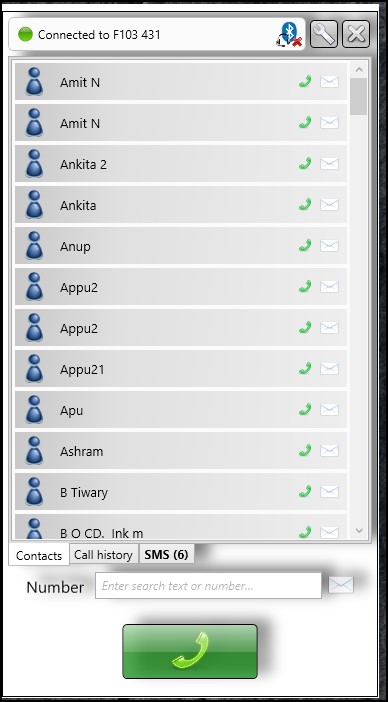
Call Center features (app running on your PC)
– Shows phone contacts
– Shows call log
– Allows dialing contacts, call log entries and entered numbers
– Writing and reading SMS messages
– Contact search
– Answer incoming calls
– Popup for incoming calls and SMS messages
– Manage audio settings
– Hotkey for dialing numbers from the clipboard
– Hotkey for accepting incoming calls
– Handle “tel” and “call to” ULRs
– Auto starts at windows login
Steps To Setup CallCentre To Make Android Calls On PC
Step 1. First of all, on your Android device you need to download
and install the cool app that is Remote Phone Call the
trial all that is valid for 15 days, and if you like this, then you can also
use its paid version for your android Receive And Make Android Call On Windows PC
Step 2. Now on your PC you need to download and install the tool
that is CallCentre the app that will allow
you to receive and make your android call on your PC.
Step 3. Now launch the app in your device and respectively on your
Windows PC.
Step 4. Now in your mobile app, you will see the device IP and
password to control it remotely, just note it down. In PC app clicks on add
wifi device and then enter that IP address there.
Step 5. Now you need to enter the password of the
network that you will get from the popup that appears on your android.
Step 6. Now fill that password in Windows tool and then your device
will get connected to your PC.


No comments:
Post a Comment