Monday, April 29, 2013

Fixing Error "Windows cannot start this hardware device because its configuration information (in the registry) is incomplete or damaged. (Code 19)"


"Windows cannot start this hardware device because its configuration information (in the registry) is incomplete or damaged. (Code 19)"
The error signifies that an registry error has occurred with the device in question, you can find a working solution as demonstrated below.
Windows Device Registry Damaged Error Code 19
To fix this registry related Windows device driver error (Code 19), follow the steps as below :
  • Navigate to Start -> Run and type "REGEDIT" and click "OK" to launch the Windows Registry Editor.
  • Once started click "File" in menu bar and then Click "Export" from the drop down menu, now save the registry backup (All) just in-case things go bad.
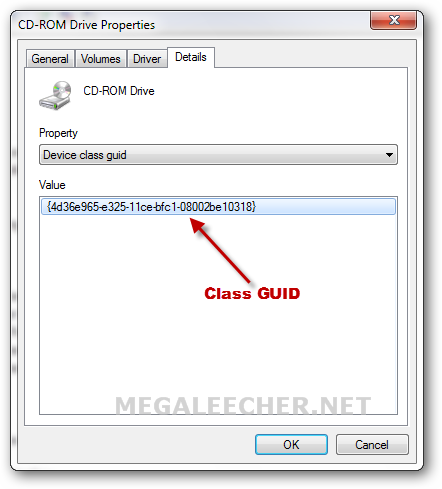
  • Now from the faulty device driver properties page, make note of the "Device class GUID" as shown below.
  • Device GUID
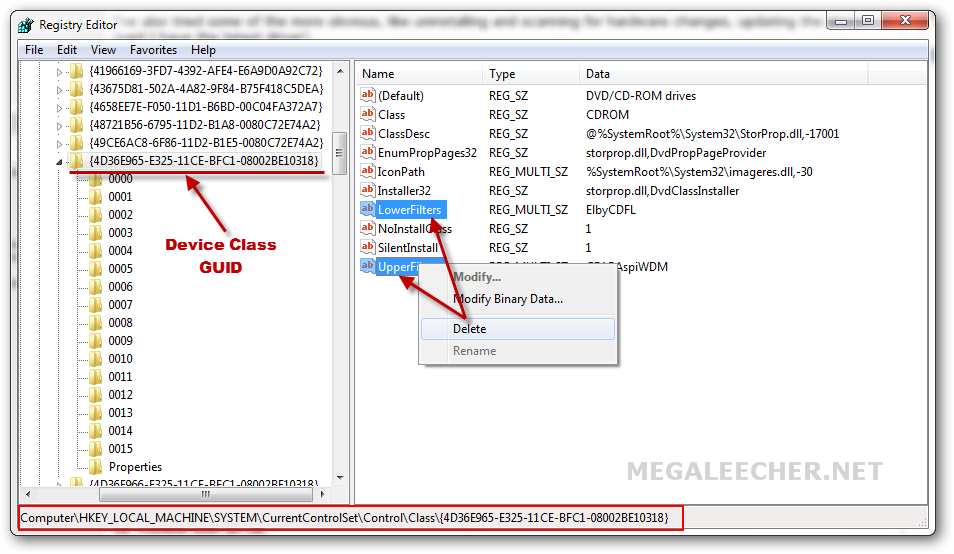
  • Navigate to HKEY_LOCAL_MACHINE -> System -> CurrentControlSet -> Control -> Class key inside windows registry editor and then click the "GUID" noted down in step above, you will see something like below - select the "UpperFilters" and "LowerFilters" keys and delete them.
  • Click to enlarge
    Registry Fix
  • Reboot your computer and the problem should be fixed.
Reinstalling BootCamp Windows Support Drivers


The Mac OS X operating-system is an major consideration for owning an Apple computer, however there could be needs where a user would want to install an Windows OS along with it in dual booting mode.
Apple provides the Boot Camp utility to Mac owners allowing them to install and configure Windows OS with Apple hardware. This multi-boot utility assists users in installing Microsoft Windows operating systems on Intel-based Macintosh computers from the beginning by performing non-destructive disk partitioning and installation of Windows with support device drivers allowing Windows OS to control Apple hardware as intended.
Bootcamp Install
For some reason if your "Boot Camp Windows Support Driver" installation gets corrupted, here is an simple to follow procedure to download and reinstall the correct BootCamp Windows Drivers on your computer.
Sadly, Apple does not provide any direct download links for there Windows Support Drivers. To reinstall these drivers on your Windows installation follow the steps below :
  1. Boot into Mac OS X and launch Boot Camp Assistant.
  2. Make sure to uncheck "Windows 7" and check "Download the latest Windows support software from Apple" as shown below.
  3. Bootcamp Assistant
  4. You will be asked whether you wanted to create an CD/DVD or save drivers on local/removable disk, pick option as per your choice and click Continue.
  5. Bootcamp Assistant
    Bootcamp Assistant
  6. Driver download will start, let it finish and complete the Boot Camp Assistant prompts to exit.
  7. Bootcamp Assistant
    Bootcamp Assistant
    Bootcamp Assistant
  8. Now, we have our Windows Support Drivers specific to our Mac model saved onto the removable media. Simply, boot into Windows and use the "Setup.exe" from this media to start driver installation.
  9. Bootcamp Assistant
    Bootcamp Assistant
  10. Since, this is a reinstall there will be two options "Repair" and "Remove". Click on "Repair" and continue.
  11. Bootcamp Assistant
  12. Setup will complete the process and display finished screen as shown below.
  13. Bootcamp Assistant
    Bootcamp Assistant
  14. When promoted to restart, do so and your Apple hardware will work as expected after reboot.
  15. Bootcamp Assistant